
Presenting your work, hearing your professor, and feeling at home
A couple lessons learned and some new tricks. First off the most important things to remember (that we know so far) for Blackboard Collaborate Ultra.
5 Tips for a good Blackboard Collaborate experience
- Put your computer in a good location. Find a spot with a good wireless (or a hardwired) connection where you are not backlit, we aren’t looking up your nose, the background noise is minimal, etc.
- Use Chrome (or Firefox) only. No Microsoft or Apple web browsers. This was the source of the audio problems in the first class.
- Start over. Sometimes you need to exit the session and rejoin to solve connection issues. Closing other programs and rebooting also can help if your system is bogging down.
- Keep your camera on and your mic off. Mostly. It’s really nice to see each other but there’s often noise issues with too many mics on at the same time. Obviously I encourage you to turn on your mic and talk.
- Interact. It’s awkward but it’s really why we’re going to all this trouble. Raising your hand and chatting worked well for getting my attention even if it took a minute before I came back to you. You can also chat with each other 1-on-1 or in small groups.
Customize your settings
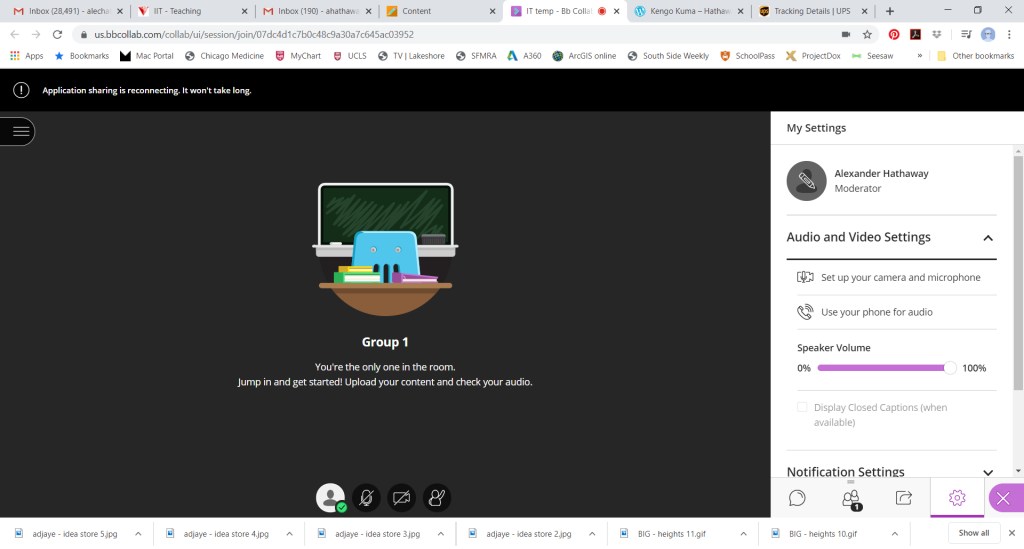
From the Collaborate Menu (hit the purple button on the bottom right) you can access audio/video and notification settings AND change your default icon to an actual picture of you. Please edit the icon to replace it with a picture of your face taken within Blackboard by your computer’s camera. No glamour shots, just you at your desk so when your camera’s off we can still imagine you sitting there just like when the camera is on.
Share files and application windows
This only works when I’ve set you to be a “Presenter” in a session rather than just a “Participant” but once I’ve done that you have some of the same tools I do. Of particular use is that you can upload files to share and share a view of an application window or Chrome web tab open on your computer.
To share files
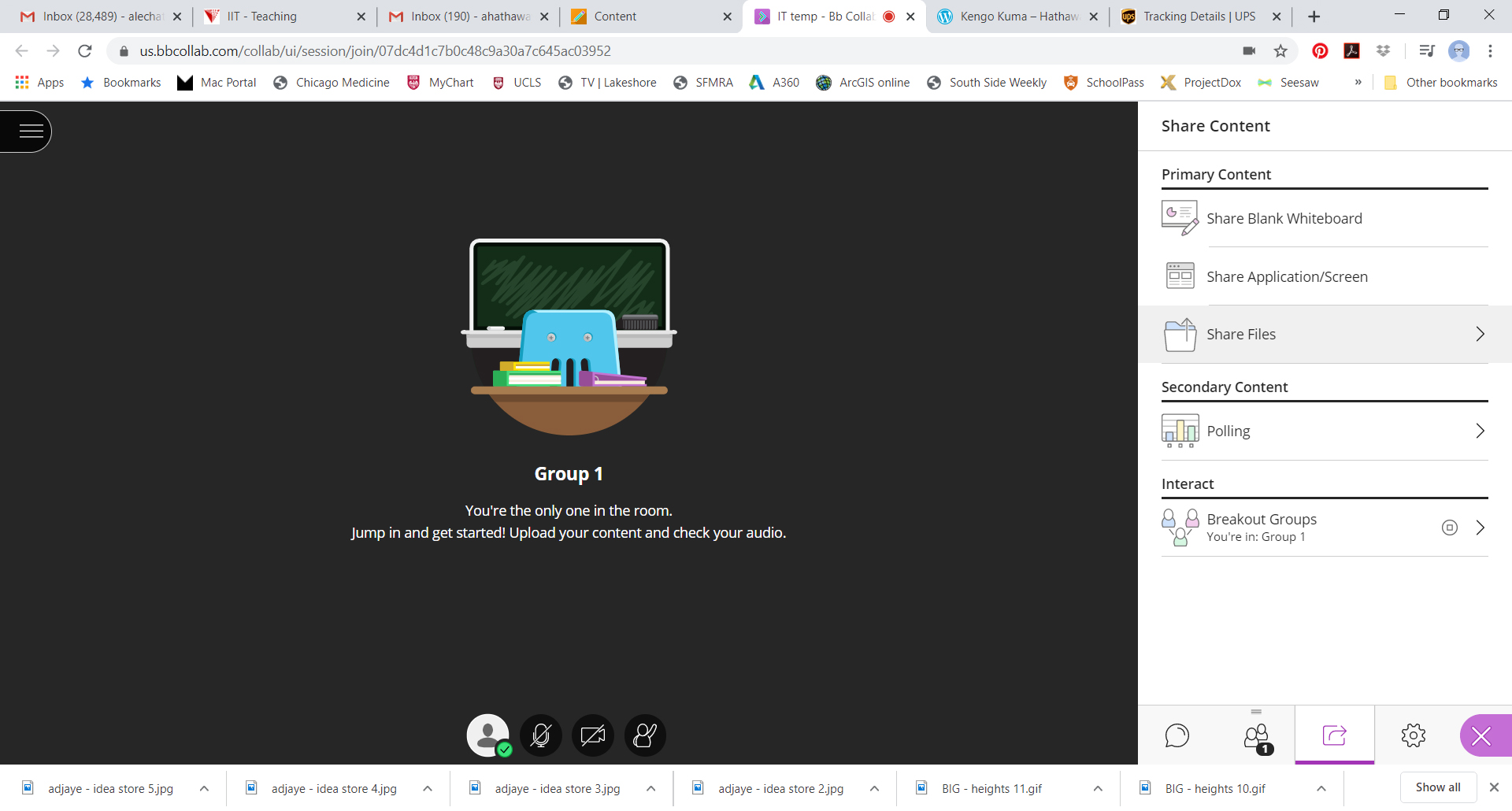
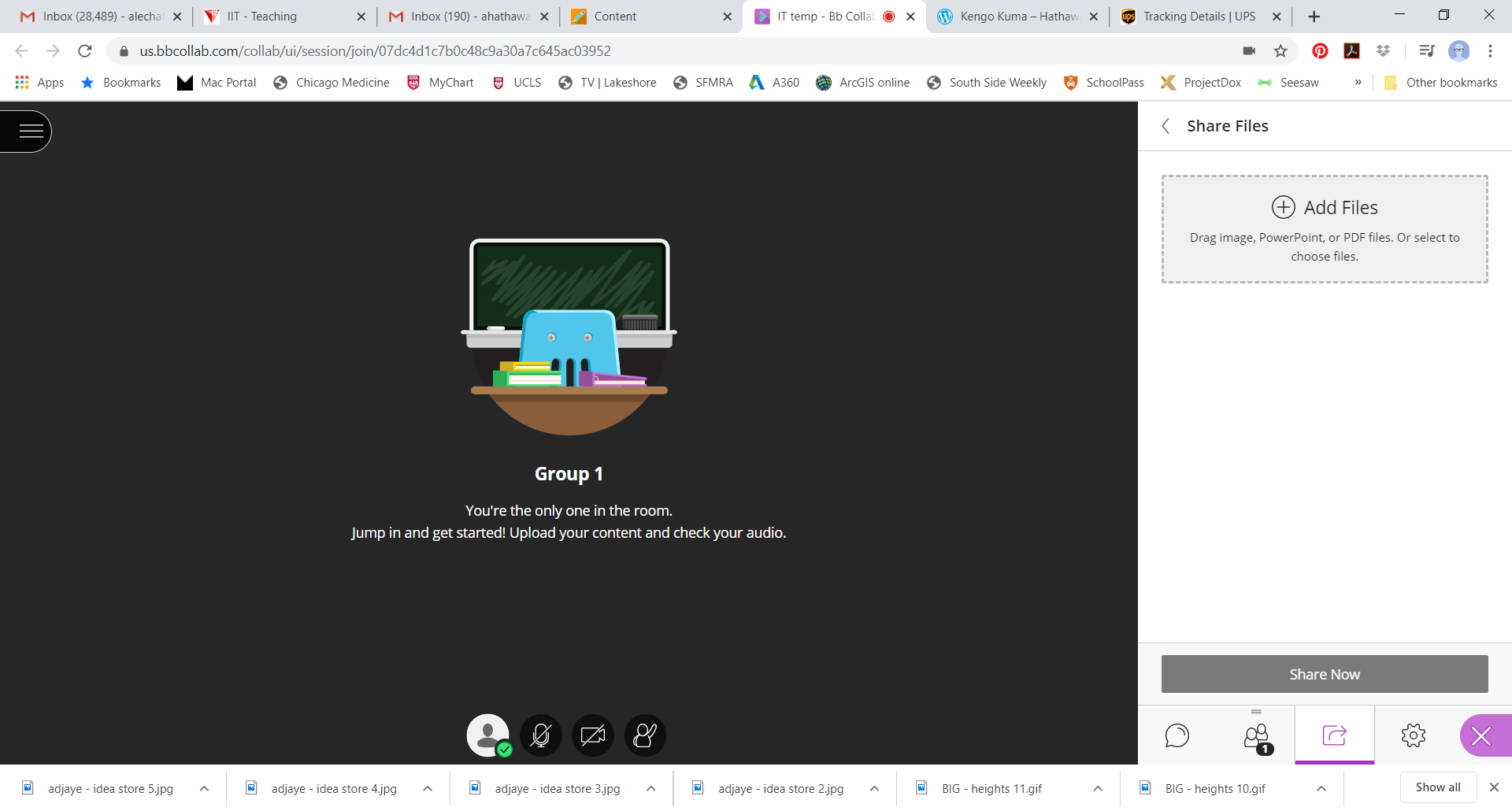
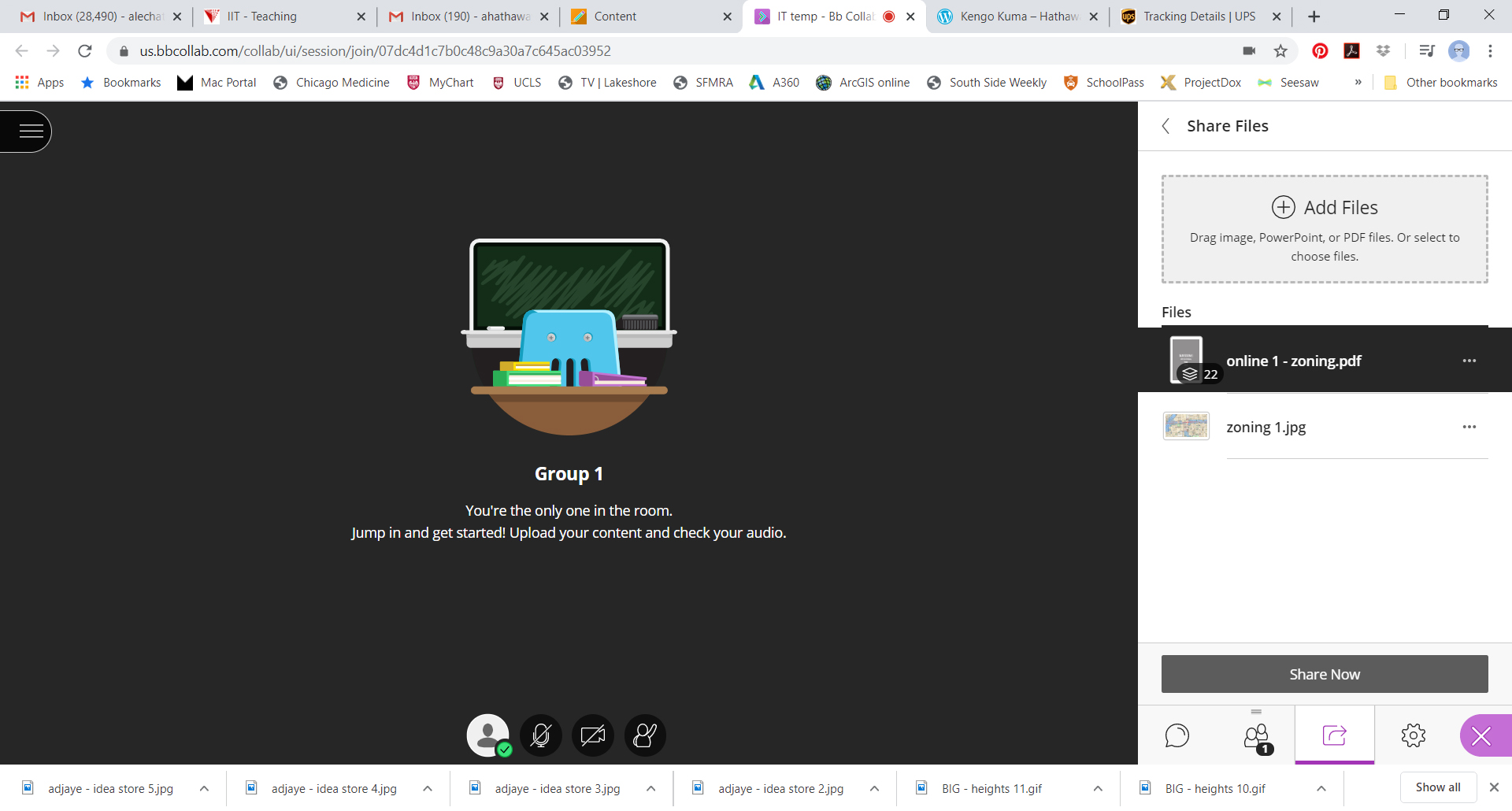
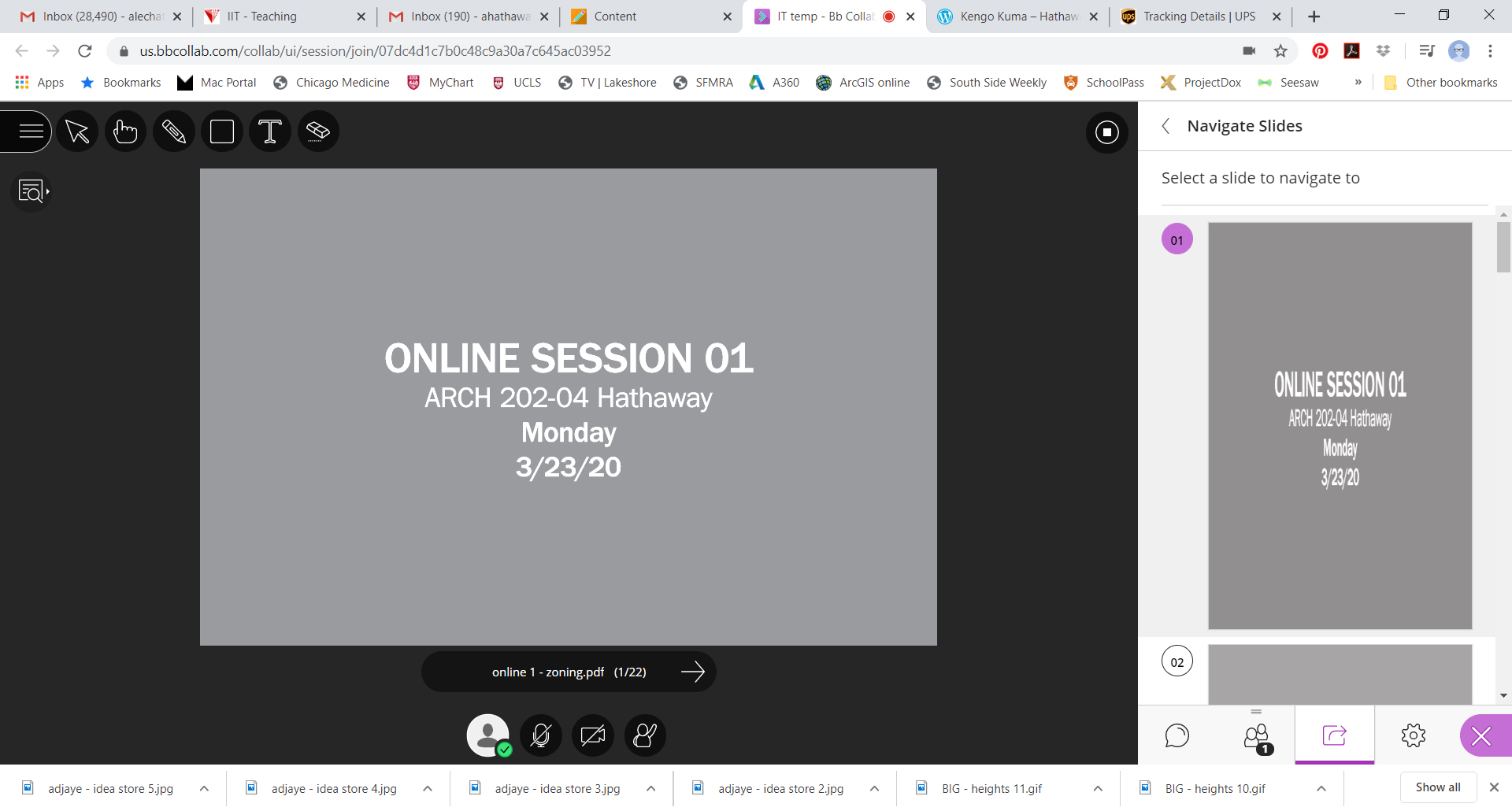
You can upload individual jpeg images, powerpoint and pdf files. It takes Blackboard a little time to upload files and then to process them for viewing on the screen so for all files set to a reasonable pixel size and for mutli-image presentations upload them as a multi-page pdf (you can navigate just like a powerpoint).
To share an application window or web tab
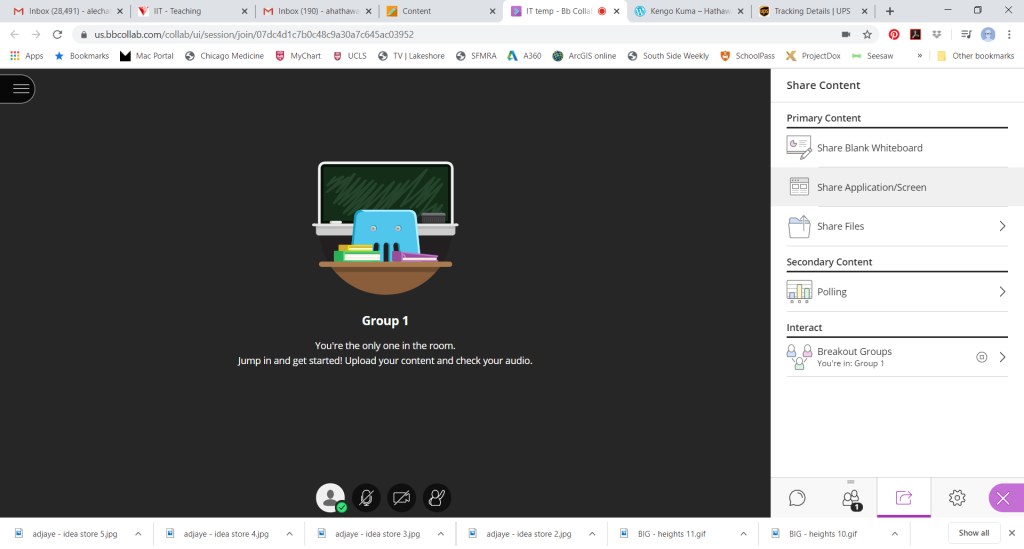
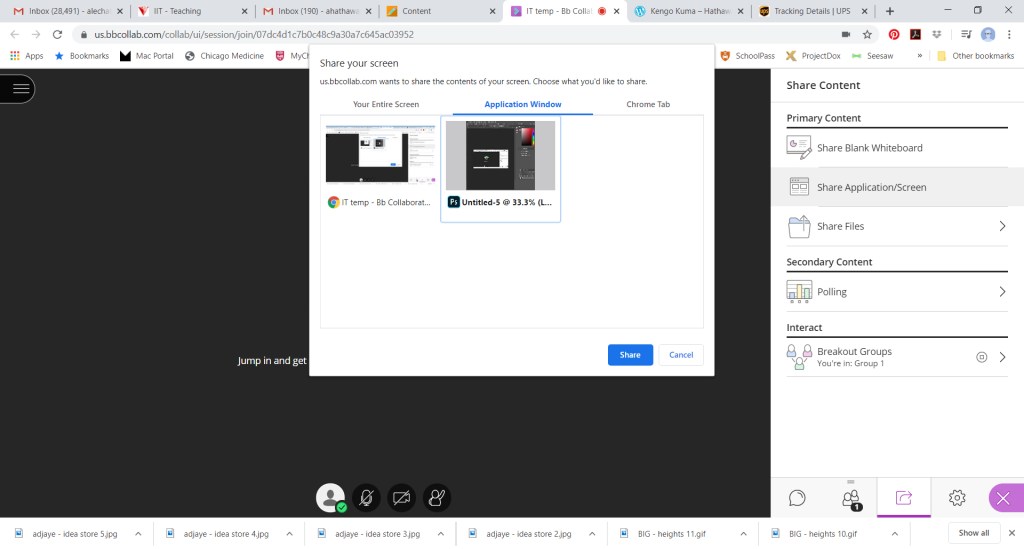
I’ve heard that it works better to share a single application window rather than your full screen. Once the screen share is up and running everyone else in the Blackboard space with you (either the main room or a breakout group) will see your application window and you can work live in it until you click the bar to stop sharing it.
 Hathaway Section - Spring 2020